> ## Documentation Index
> Fetch the complete documentation index at: https://docs.persistence.dev/llms.txt
> Use this file to discover all available pages before exploring further.
# Build with Composer
> Create or modify an agent through the AI-assisted workspace.
Composer turns a written goal into an agent configuration. Use it to build a new AI voice agent, modify an existing agent, or explore a workflow before opening the full builder.
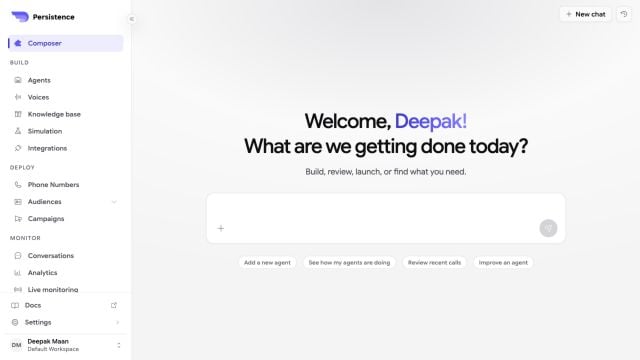 ## Start a build
State the caller, call direction, goal, information the agent needs, actions it may take, and when it should transfer or end the call.
Attach an existing agent, knowledge base, or document when Composer should use that resource. You can also mention an agent or knowledge base in the message.
Confirm important choices such as structure, voice, and capabilities. Treat generated configuration as a draft that still needs review.
Talk to the generated agent, inspect it in the builder, correct any unsupported assumption, and publish only after simulated calls pass.
Composer keeps chat history so you can return to earlier work. Do not paste credentials or production customer data into a Composer message or attachment.
## Start a build
State the caller, call direction, goal, information the agent needs, actions it may take, and when it should transfer or end the call.
Attach an existing agent, knowledge base, or document when Composer should use that resource. You can also mention an agent or knowledge base in the message.
Confirm important choices such as structure, voice, and capabilities. Treat generated configuration as a draft that still needs review.
Talk to the generated agent, inspect it in the builder, correct any unsupported assumption, and publish only after simulated calls pass.
Composer keeps chat history so you can return to earlier work. Do not paste credentials or production customer data into a Composer message or attachment.