> ## Documentation Index
> Fetch the complete documentation index at: https://docs.persistence.dev/llms.txt
> Use this file to discover all available pages before exploring further.
# Voices
> Browse, preview, organize, and create voices for agents.
The voice library contains text-to-speech and speech-to-speech voices available to your workspace. Preview a voice with the same kind of sentence your agent will use before assigning it.
 ## Find a voice
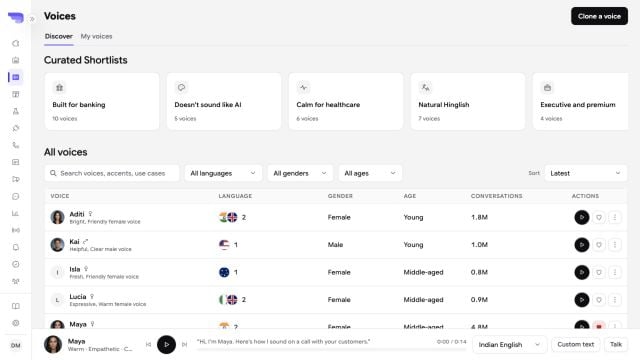
Open **Voices** to search and filter the library. Available filters can include provider, language, accent, gender, age, traits, and voice category.
The library can include voices from Cartesia, ElevenLabs, MiniMax, OpenAI, and custom sources. Availability depends on the current workspace configuration.
## Preview consistently
Enter a specimen script to hear the same text across candidate voices. Test names, dates, amounts, product terms, and phone numbers that occur in the real workflow.
When you select a voice for an agent, also configure its language and speaking speed. Use the browser preview to check pacing and interruption behavior over a complete conversation.
## Voice collections
Use **Collections** to group voices for a team, brand, language, or use case. Adding a voice to a collection does not change the voice itself.
You can copy a voice ID from the library for a supported integration. Deleting a collection unlinks its voices; it does not delete the underlying voices.
## Clone a voice
The **Custom voices** page supports creating a Cartesia voice from a clean recording.
Use WAV, MP3, FLAC, OGG, M4A, or WebM audio smaller than 10 MB. Record one speaker in a quiet environment.
Confirm that you have permission to clone and use the speaker's voice.
Name the voice, upload or record the clip, create the clone, and preview it before using it in an agent.
Only clone a voice when you have the speaker's authorization. Voice consent is a product requirement and may also be a legal requirement in your jurisdiction.
You can edit the local name and description of a cloned voice. Deleting a custom voice permanently removes it, so update any dependent agent first.
## Find a voice
Open **Voices** to search and filter the library. Available filters can include provider, language, accent, gender, age, traits, and voice category.
The library can include voices from Cartesia, ElevenLabs, MiniMax, OpenAI, and custom sources. Availability depends on the current workspace configuration.
## Preview consistently
Enter a specimen script to hear the same text across candidate voices. Test names, dates, amounts, product terms, and phone numbers that occur in the real workflow.
When you select a voice for an agent, also configure its language and speaking speed. Use the browser preview to check pacing and interruption behavior over a complete conversation.
## Voice collections
Use **Collections** to group voices for a team, brand, language, or use case. Adding a voice to a collection does not change the voice itself.
You can copy a voice ID from the library for a supported integration. Deleting a collection unlinks its voices; it does not delete the underlying voices.
## Clone a voice
The **Custom voices** page supports creating a Cartesia voice from a clean recording.
Use WAV, MP3, FLAC, OGG, M4A, or WebM audio smaller than 10 MB. Record one speaker in a quiet environment.
Confirm that you have permission to clone and use the speaker's voice.
Name the voice, upload or record the clip, create the clone, and preview it before using it in an agent.
Only clone a voice when you have the speaker's authorization. Voice consent is a product requirement and may also be a legal requirement in your jurisdiction.
You can edit the local name and description of a cloned voice. Deleting a custom voice permanently removes it, so update any dependent agent first.