

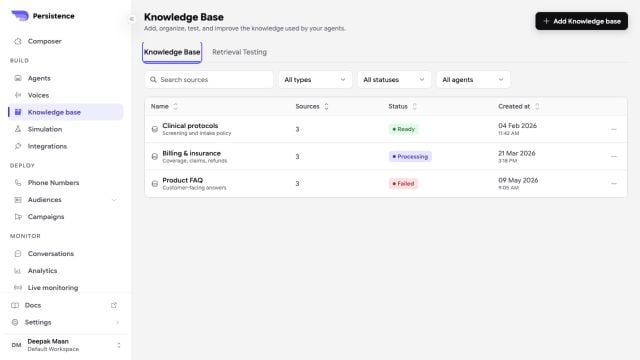
The Knowledge Base library shows source counts and processing status for each collection.
Create a knowledge base
1
Open Knowledge Base
From the dashboard, open Knowledge Base and create a knowledge base with a clear name and description.
2
Add documents
Upload PDF files up to 5 MB each. Wait until processing finishes before attaching the knowledge base to a production agent.
3
Attach it to an agent
Open the agent’s settings, select Knowledge Base, and add the ready knowledge base.
4
Test retrieval
Ask questions that should be answered, should combine nearby information, and should return a fallback because the answer is absent.
Keep retrieval reliable
Use Retrieval Testing to select a knowledge base, enter a representative query, adjust supported retrieval settings, and inspect the chunks the agent would receive.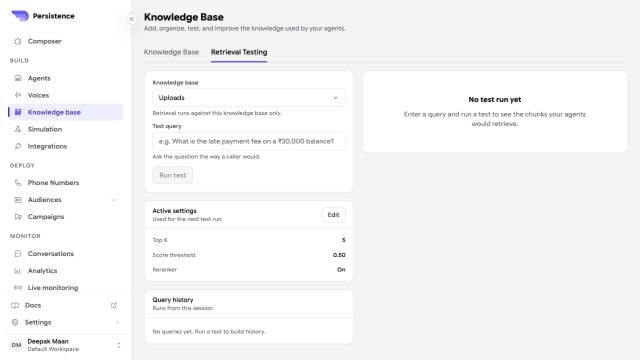
Retrieval Testing makes ranking settings, returned chunks, and query history visible before an agent goes live.
- Keep each knowledge base focused on one domain.
- Remove obsolete or conflicting documents.
- Use descriptive headings and plain text in source documents.
- Put behavior rules in the agent instructions, not only in the knowledge documents.
- Re-test the agent after adding or deleting a document.
An agent can only use a knowledge base that has finished processing. The agent settings identify knowledge bases that are not ready.
Knowledge Bases API
Create, list, inspect, and delete knowledge bases through the public API.